Temperature Tuning
Undervolting and Underclocking
Undervolting refers to lowering the voltage sent to the CPU so that it produces less heat
Underclocking refers to limiting the boost clock of the CPU so that it produces less heat
WSL2 does not allow you to undervolt the cpu if it is enabled. This is due to Virtual Machine Platform which is used by Windows to run WSL.
This is only a problem in W11, in W10 you can both undervolt and run WSL
CPU
Intel
Program Used : Throttlestop
I will only be listing out the profiles and some additional info. Read the in-depth guide for a better understanding.
Enable SpeedShift if you have the option in your bios.
These are just an example of my undervolt, yours might vary, DO NOT COPY
- Undervolt
- Core and cache do not have to be the same number, core can be much higher than the cache.
- The cache will bsod your pc first so get it right.
- You just have to test where the system BSODs
- Test the undervolt for a week and only then add it to the schedule in the above guide
For stress test use the Throttlestop bench option, if there is a single error on MAX size, change your undervolt
- 4 Profiles
- Performance - For CPU intensive games/work (modded minecraft, editing)
- No-Boost - For GPU intensive games/work (witcher 3, excel)
- Quiet - For watching movies, music, light tasks
- Battery - For pushing the battery to last longer
For auto-switching to battery profile
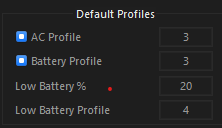
For games/programs that require higher clocks
- Performance
- SpeedShift - 32
- 3.6 Multiplier all cores You can do 3.5, I haven’t seen any FPS gains >3.5Ghz
If you want to play and be on lower temps
- No-Boost
- SpeedShift - 32
- Boost off
Browsing/Office Work
- Quiet
- SpeedShift - 192
- Boost off
For the last 20% of your battery
- Battery
- SpeedShift - 255
- Boost off
- Almost becomes unusable but decent
GPU
Mostly for reducing laptop temps or desktop power consumption
Method 1
Quick
Find out your max rated clock on the internet for your gpu
Using MSI Afterburner set the frequency curve(CTRL+F) to the frequency found above
As an example, max clock of my 1660ti mobile is rated at 1.59GHz. So I locked it to 1600MHz

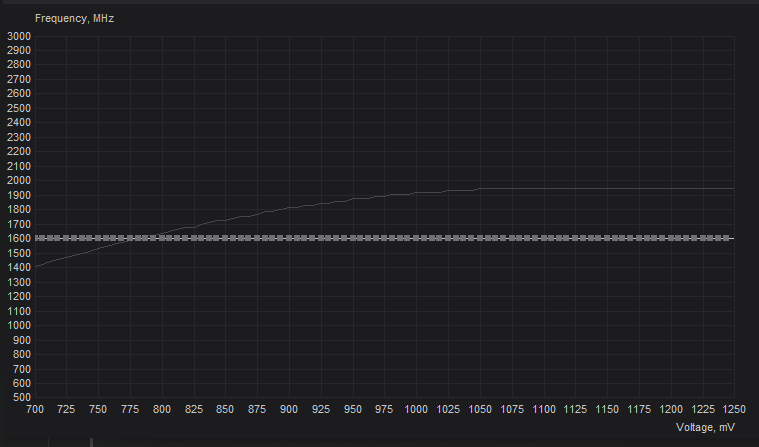
Use shift + drag to select all points in the curve, select any one point, shift + enter and input the frequency
Do not run Afterburner on start up on laptops, it will constantly ping the dgpu and reduce battery life
Method 2
Run a benchmark such as Heaven benchmark
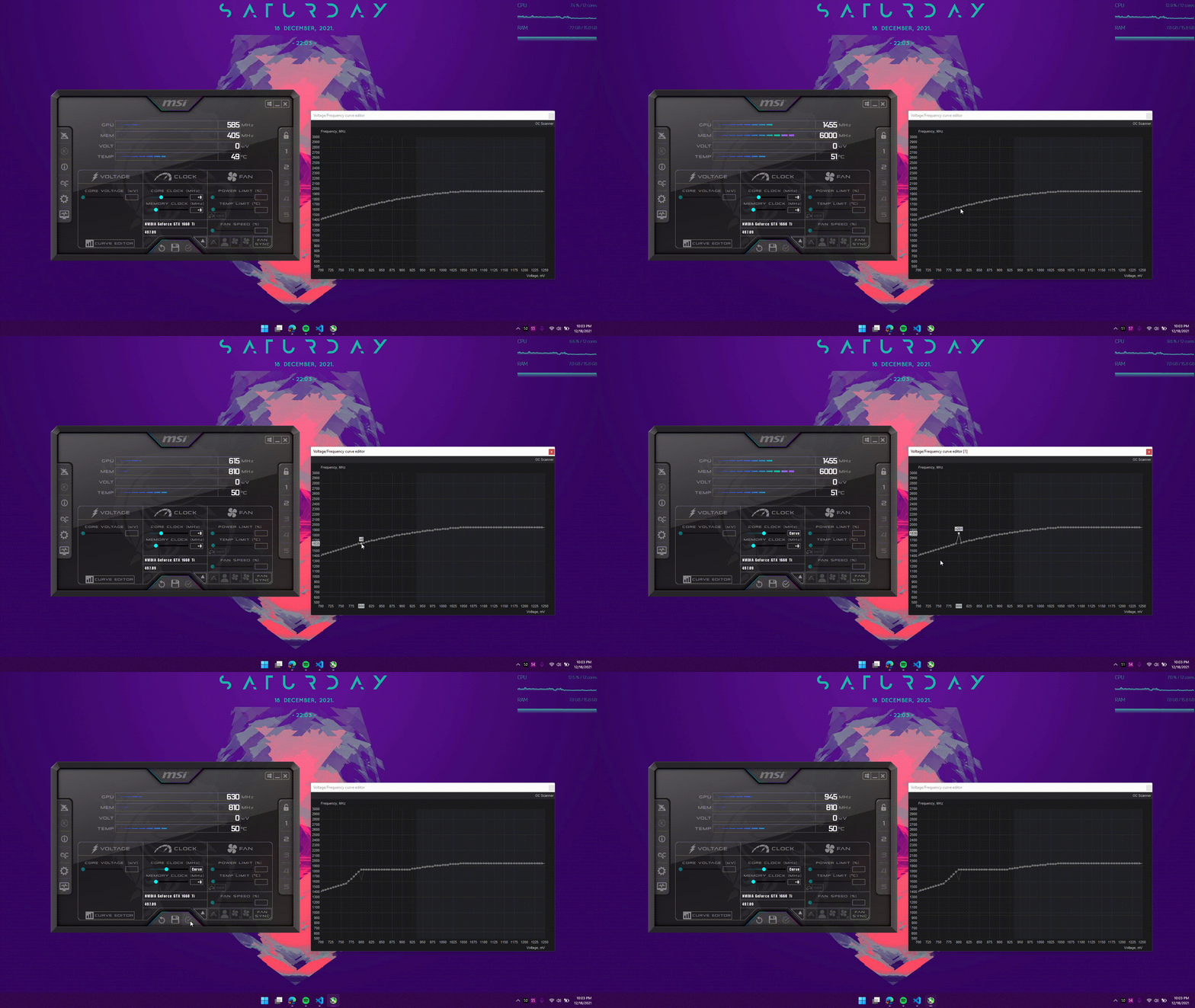
Keep running it in the background and open up msi afterburner curve editor. The lower axis represents the voltage of the GPU.
- Check the clock where you gpu boosts to with optimal temps
- Find out in the curve editor where the voltage of the frequency you found out match
- Pick a lower voltage and set the frequency on that point to the optimal frequency
- Apply and the rest should be set to the same
- Keep doing this until heaven benchmark freezes or crashes, that’s the minimum
- Keep the optimal to 1 or 2 points higher in the afterburner